An MCP server is an external service that exposes a set of tools your AI workflows can use — for example, searching your company's internal knowledge base, querying a database, or calling a private API. MCP stands for Model Context Protocol, an open standard for connecting AI assistants to outside tools.
If a service publishes an MCP server, you can connect it to ORCFLO by URL. Once connected, its tools appear in the workflow editor alongside ORCFLO's built-in tools, and your AI steps can call them during a run.
Where to find it
MCP servers are managed from Dashboard → Integrations, in the MCP servers section at the top of the page.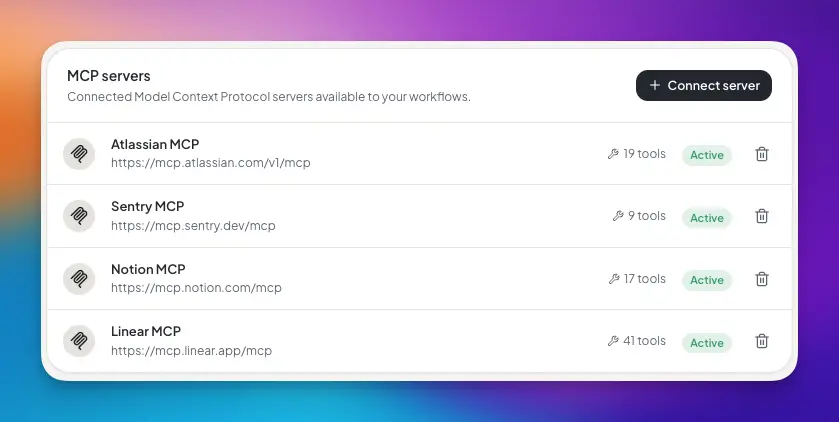
MCP Servers vs. Connected Apps
ORCFLO offers two ways to bring outside tools into your workflows. They live in the same place but serve different needs.
| Connected Apps | MCP Servers | |
|---|---|---|
| What it is | A ready-made catalog of 800+ popular apps | Any MCP server you point ORCFLO at by URL |
| Examples | GitHub, Gmail, Slack, Notion | Your own internal tools, niche or private services |
| Setup | Click Connect, authorize with the provider | Paste the server URL, then authenticate |
Which should I use?
If the app you want is in the Connected Apps catalog, use that — it's the quickest path. Reach for MCP servers when you need a tool that isn't in the catalog, such as something your own team built.Connecting a Server
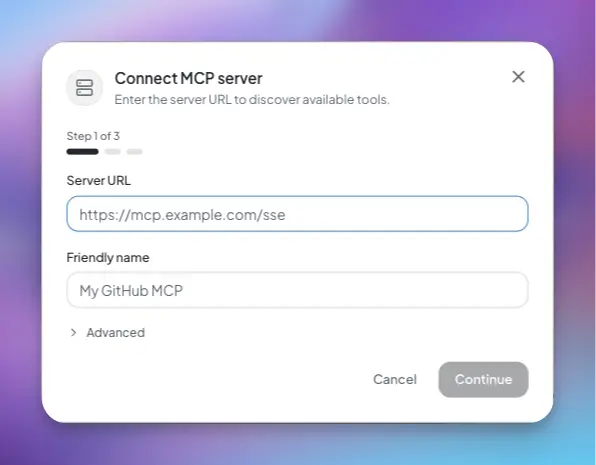
From the Integrations page, click Connect server in the MCP servers section. A short three-step flow opens.
Connect
Enter the Server URL (for example, https://mcp.example.com/sse) and a Friendly name so you can recognize it later, like “My GitHub MCP”. Then click Continue.
Authenticate (if needed)
ORCFLO checks the server to discover its tools. If the server needs sign-in, you'll be prompted to authenticate — see Authentication below. Many servers are public and skip this step.
Select tools
ORCFLO lists every tool the server offers, all enabled by default. Uncheck any you don't want available, then click Connect.
What happens when ORCFLO checks the server
ORCFLO briefly connects to the URL you entered to read its list of tools. It does not run any of them at this point — it only asks the server what it can do.Authentication
Some MCP servers are open and need no sign-in. Others require credentials. ORCFLO supports three options. When a server requires sign-in, it'll tell you which method to use.
OAuth sign-in
If a server uses OAuth, you'll see a prompt to Sign in with OAuth. Clicking it sends you to the server's own sign-in screen, where you authorize ORCFLO. After you approve, you're returned to ORCFLO and the connection finishes automatically. This is the recommended method when it's available — you never have to copy or paste a secret.
Bearer token or custom header
For servers that authenticate with an API key, open the Advanced section in the connect dialog and choose how to send it:
- Bearer token — paste a token that ORCFLO sends as a standard authorization header.
- Custom header — specify a header name (such as
X-Api-Key) and its value.
Your credentials are encrypted
Tokens and header values are encrypted before they're stored, and they're only decrypted when a workflow needs to call the server. They are never shown back to you after you save them.Choosing Tools
On the final step, ORCFLO shows every tool the server offers, each with a short description. All tools are enabled by default. Uncheck anything you don't want your workflows to be able to use — only enabled tools become available in the editor.
Enable only what you need
Fewer, clearly-relevant tools make it easier for the AI to pick the right one. You can always reconnect later to enable more.Managing Servers
Each connected server appears as a row in the MCP servers section, showing its name, URL, number of enabled tools, and a status badge.
| Status | Meaning |
|---|---|
| Active | Connected and working. Its tools are available to your workflows. |
| Reconnect needed | The server's sign-in has expired. Click Reconnect on the row to sign in again. |
| Unreachable | ORCFLO couldn't reach the server — it may be offline or the URL may have changed. |
To remove a server, click the trash icon on its row. This deletes the connection and its stored credentials.
Effect on existing workflows
Removing a server, or leaving it in a Reconnect needed or Unreachable state, doesn't change or break your workflows. During a run, ORCFLO simply skips that server's tools and continues with everything else. Reconnect the server to make its tools available again.Using in Workflows
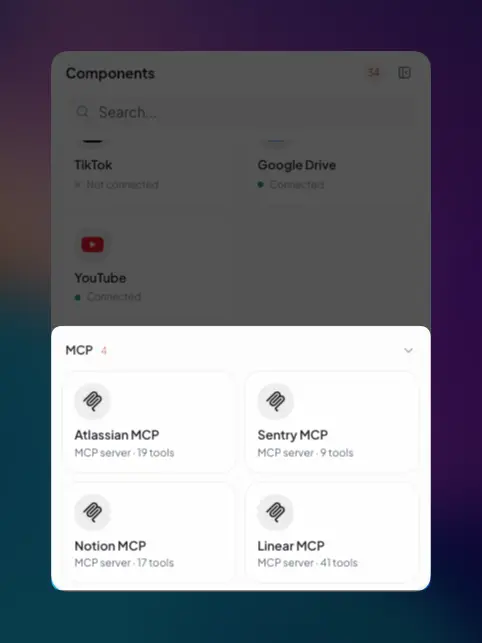
Once a server is connected, open the tool picker on any AI step. Connected MCP servers appear as their own rows — click one to see its tools, then check the ones you want this step to be able to use.
Adding a tool to a step gives the AI the option to use it, not an obligation. Describe in your step's prompt when the tool should be used so the AI knows when to reach for it.
The AI decides when to act
Like all tools in ORCFLO, MCP tools are called only when the AI judges they're needed to complete the step. Clear instructions in your prompt lead to better choices.Security & Privacy
- Encrypted credentials. Tokens, header values, and OAuth sign-ins are encrypted at rest and only decrypted when a workflow needs to call the server.
- Secure connections only. MCP server URLs must use
https. Plain, unencrypted addresses are rejected. - Private servers are not allowed. ORCFLO blocks URLs that point to internal or private network addresses, so a server URL can't be used to reach systems that aren't meant to be public.
- Per-account connections. The servers you connect are scoped to your account and used only by your workflows.
Only connect servers you trust
An MCP server's tools run with whatever access you grant them and can read the inputs your workflow sends. Connect servers from sources you trust, and enable only the tools you actually need.Ready to connect a server? Head to your Integrations settings to get started.
Open Integrations Settings